
 Abdul Moeed
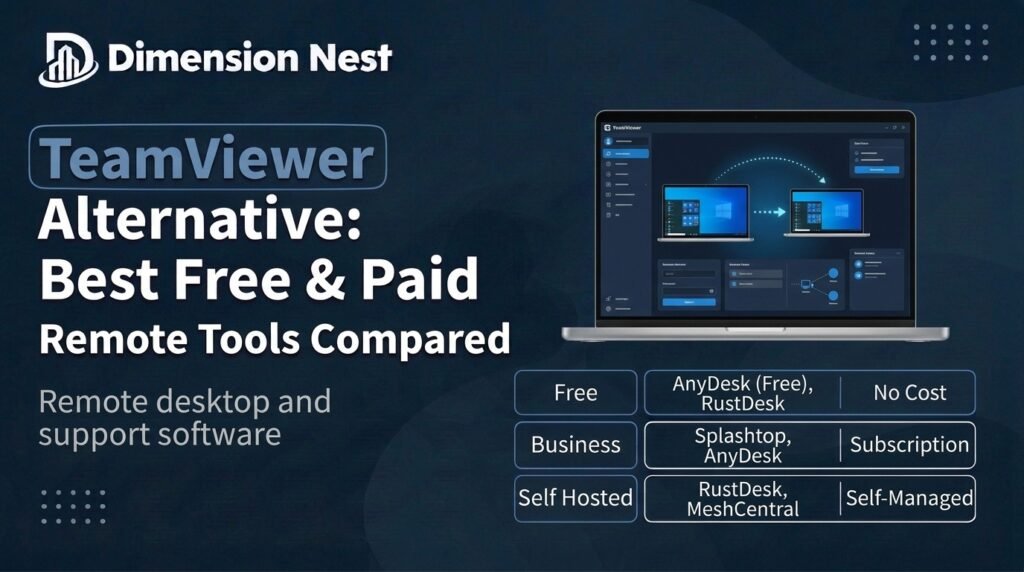
A small business owner opens TeamViewer to fix a parent’s laptop and sees a commercial use warning instead. That moment sends thousands of people searching for a teamviewer alternative every month. Some want a free tool, some want lower business costs, and others want tighter security controls.
This guide compares the most popular remote desktop tools, explains how they differ, and shows how to pick the right one. Readers who compare creative software can also check our guide on adobe illustrator alternative options. Both guides follow the same method of matching tools to real needs instead of hype.
The sections below cover definitions, comparison tables, pricing models, security checks, setup steps, common mistakes, and a buying checklist. Each part uses plain language so home users, freelancers, and IT teams can follow along.
Quick Answer: What Is the Best TeamViewer Alternative?
A TeamViewer alternative is any remote desktop tool that lets users view and control another computer over the internet. AnyDesk, Chrome Remote Desktop, RustDesk, Splashtop, and Zoho Assist are the most common choices. The best pick depends on budget, device types, security needs, and whether the use is personal or commercial.
What Is a TeamViewer Alternative at a Glance?
TeamViewer is a remote access and support platform that a German company launched in 2005. It lets one device connect to another for support, file transfer, meetings, and unattended access. Alternatives offer the same core job with different prices, licensing rules, and technical designs.
| Item | Detail |
|---|---|
| Category | Remote desktop and remote support software |
| Core job | View and control another device remotely |
| Common users | Home users, freelancers, IT teams, help desks |
| Free options | Chrome Remote Desktop, RustDesk, AnyDesk personal |
| Paid options | Splashtop, Zoho Assist, ScreenConnect, RealVNC |
| Main buying factors | Price, security, platforms, licensing terms |
This table shows that the remote desktop market offers several mature choices beyond one well known brand.
In simple words, a TeamViewer alternative does the same remote control job, usually with a different price or license model.
Why Do People Look for a TeamViewer Alternative?
Most searches start with cost, licensing confusion, or a commercial use warning on a free account. TeamViewer offers free personal use, but its software can flag sessions that look commercial. Users who help clients or coworkers often hit that limit and need a paid plan or another tool.
Business buyers also compare subscription prices across vendors when renewal dates come near. Remote support tools charge per user, per technician, or per device, so costs can climb quickly as teams grow. A cheaper tool with similar features can save a small company hundreds of dollars each year.
Security concerns push some teams toward self hosted tools that keep traffic on their own servers. Others need features such as mobile device support, session recording, or single sign on. These different needs explain why one product rarely fits every single type of user perfectly.
Is TeamViewer Still Free for Personal Use?
TeamViewer still offers a free license for private, non commercial use on personal devices. The company uses detection tools that may flag sessions it considers commercial. Users who receive a warning can request a review, buy a license, or switch to another tool.
How Does Remote Desktop Software Work?
Remote desktop tools stream the screen of one computer to another device and send mouse and keyboard input back. Most tools use a relay server to connect devices behind home routers and office firewalls. The flow below shows a typical connection path from one device to another.
Local device -> Relay or direct link -> Remote agent -> Screen stream -> Local deviceThis simple loop explains why speed depends on internet quality, codec design, and server location.
Attended vs Unattended Access
Attended access means someone sits at the remote computer and approves the session. Help desks use this mode for one time support calls with customers or coworkers. Unattended access means the remote computer accepts connections without a person present, which suits servers and office machines.
Cloud Relay vs Self Hosted
Cloud relay tools route connections through the vendor’s servers, which makes setup quick and easy. Self hosted tools, such as RustDesk with its own server, keep traffic inside infrastructure the user controls. Self hosting adds privacy control but also adds maintenance work and server costs.
What Are the Key Characteristics of a Good TeamViewer Alternative?
Strong remote desktop tools share a set of traits that matter more than marketing claims. These key characteristics help buyers separate solid tools from weak or risky ones:
- The tool supports every operating system the user needs, including Windows, macOS, Linux, Android, and iOS.
- Connections use strong encryption, such as AES 256, and support two factor authentication on accounts.
- Session speed stays smooth on average home internet, with low lag during typing and mouse movement.
- Licensing terms explain clearly what counts as personal use and what requires a paid plan.
- File transfer, clipboard sync, and multi monitor support work without extra plugins or confusing menus.
- Administrators can manage users, devices, and permissions from one central dashboard for team accounts.
These traits give buyers a practical scorecard before they start any free trial or demo.
Best TeamViewer Alternative Tools Compared
The remote desktop market includes free tools, budget tools, and enterprise platforms. The table below compares the most common choices by price model, strength, and best user type.
| Tool | Price model | Main strength | Best for |
|---|---|---|---|
| AnyDesk | Free personal, paid business | Fast, light client | Freelancers and small teams |
| Chrome Remote Desktop | Free | Simple browser setup | Home users helping family |
| RustDesk | Free, open source | Self hosting option | Privacy focused users |
| Splashtop | Paid subscription | Strong value for teams | Small businesses and schools |
| Zoho Assist | Free tier, paid plans | Help desk features | Support teams |
| RealVNC Connect | Paid plans | Mature VNC technology | Mixed device fleets |
| ConnectWise ScreenConnect | Paid plans | Advanced IT control | Managed service providers |
| Windows App (Remote Desktop) | Included with Windows Pro | Native RDP connection | Windows office networks |
This comparison shows that no single tool wins every category, so needs should drive the final choice.
AnyDesk
AnyDesk launched in 2014 and built a reputation for a small installer and fast connections. It offers free personal use with business plans for commercial support work. Many former TeamViewer users find its interface familiar and easy to learn.
Chrome Remote Desktop
Chrome Remote Desktop runs through the Chrome browser and a Google account at no cost. It handles basic screen sharing and unattended access for personal computers well. It lacks advanced business features such as session recording, ticketing, and detailed user management.
RustDesk
RustDesk is an open source remote desktop tool that users can self host on their own server. That design gives full control over connection data and suits privacy focused teams. Setup takes more technical skill than cloud tools, especially for the self hosted server.
Splashtop
Splashtop offers business remote access and remote support plans at prices many teams find competitive. Schools, small businesses, and IT departments use it for both attended and unattended access. Its apps cover Windows, macOS, Android, iOS, and Chromebooks for mixed device fleets.
Zoho Assist
Zoho Assist focuses on customer support sessions, with features such as session notes, file transfer, and integrations. It connects well with other Zoho business apps, which helps teams already using that suite. A free tier lets small teams test the core features before paying for a plan.
TeamViewer vs AnyDesk: Which Is Better?
TeamViewer and AnyDesk are the two names buyers compare most often during a switch. Both offer free personal use, paid business plans, and wide platform support. The table below highlights the main differences between the two popular remote tools.
| Feature | TeamViewer | AnyDesk |
|---|---|---|
| Launch year | 2005 | 2014 |
| Free personal use | Yes, with commercial detection | Yes, with commercial limits |
| Installer size | Larger | Smaller |
| Business features | Broad suite with many add ons | Focused core features |
| Learning curve | Moderate | Low |
The key takeaway is that AnyDesk suits users who want a lighter tool, while TeamViewer suits buyers needing a broad suite.
Both companies have faced security incidents in recent years, which pushed each to reset credentials and harden systems. Do not rely on vendor reputation alone; turn on two factor authentication for every remote access account. That single step blocks many account takeover attempts.
Free vs Paid TeamViewer Alternatives
Free tools work well for occasional personal help, while paid tools fit regular business support. The table below shows what changes when a user moves from free to paid plans.
| Feature | Free tools | Paid tools |
|---|---|---|
| Commercial use | Usually not allowed | Allowed under license |
| Session recording | Rare | Common |
| User management | Basic or none | Central dashboard |
| Support | Community forums | Email, chat, or phone |
| Device limits | Often limited | Higher limits by plan |
This comparison shows that paid plans mostly add management, compliance, and support, not basic connection ability.
Readers who compare video tools as well can see a similar free versus paid breakdown in our guide on after effects alternative software. The same rule applies there: match the plan to real daily use, not to feature lists.
Remote Desktop Performance: What Affects Speed?
Connection speed shapes the whole remote desktop experience, so buyers should know what slows sessions down. Internet upload speed on the remote computer matters more than download speed on the local device. A weak upload line limits how much screen data the remote machine can send each second.
Screen resolution and the number of monitors also affect speed during every session. A single 1080p screen streams far more smoothly than three 4K monitors on the same line. Most tools let users lower resolution or color depth when connections struggle.
The distance to the nearest relay server adds delay to every click and keystroke. Vendors with many server locations usually deliver lower lag for users in different countries. Direct peer connections, when firewalls allow them, often cut that delay even further.
| Factor | Effect on speed | Quick fix |
|---|---|---|
| Upload speed | Limits screen data flow | Use wired internet on the remote side |
| Screen resolution | Higher resolution needs more data | Lower resolution during sessions |
| Monitor count | More screens add load | Show one monitor at a time |
| Relay distance | Adds delay to input | Pick vendors with nearby servers |
| Background apps | Compete for bandwidth | Pause large downloads and backups |
This table shows that small settings changes often fix lag faster than switching to another tool.
Which TeamViewer Alternative Fits Each Use Case?
Different users need different tools, even when the core remote control job stays the same. The table below matches common situations with tools that usually fit them well.
| Use case | Good fit | Reason |
|---|---|---|
| Helping a parent at home | Chrome Remote Desktop | Free and simple |
| Freelance client support | AnyDesk business plan | Light and affordable |
| Privacy focused company | RustDesk self hosted | Data stays on own server |
| School IT department | Splashtop | Education friendly pricing |
| Customer help desk | Zoho Assist | Support workflow features |
| Managed service provider | ScreenConnect | Advanced control and scripting |
| Windows only office | Windows App with RDP | Built into Windows Pro |
This table gives a quick starting point before buyers run trials of their top two or three choices.
How Do Remote Desktop Tools Handle Security?
Remote access tools open a direct path into a computer, so attackers target them often. Scammers also use remote tools in fake tech support calls to trick victims. Strong security settings protect both the user and the remote device from these threats.
Most reputable tools encrypt sessions end to end and support two factor authentication. Business plans often add device approval lists, role based permissions, and detailed session logs. Self hosted tools give more control, but they also make the owner responsible for patching the server.
Never let a stranger who calls unexpectedly install remote access software on a computer. Real banks, tech companies, and government agencies do not call people to request remote access. This simple rule blocks the most common remote access scam targeting older adults.
Security Tips for Any Remote Desktop Tool
Daily security habits matter as much as the remote desktop tool itself. These tips reduce risk for home users, freelancers, and business teams alike:
- Turn on two factor authentication for every remote access account, including free personal accounts.
- Use unique, long passwords for unattended access instead of short codes or reused passwords.
- Remove old devices and former employees from device lists every month without exception.
- Update the remote desktop client on every device as soon as the vendor releases a patch.
- Close remote sessions fully after each support call instead of leaving connections open overnight.
- Review session logs regularly for unknown connections, odd hours, or repeated failed login attempts.
These tips cost nothing, yet they block the most common attacks against remote access tools.
Real World Example: A Small Agency Switches Tools
Consider a fictional design agency with eight staff members and forty client computers to support. The agency used TeamViewer for years but faced rising renewal costs as its client list grew. The owner tested three tools over two weeks before making a decision.
AnyDesk handled quick client sessions smoothly, while Splashtop offered better pricing for unattended office machines. Chrome Remote Desktop worked for staff home computers but lacked the client management features the agency needed. The agency chose Splashtop for business use and kept Chrome Remote Desktop for internal personal help.
The switch took one weekend, including client installs, account setup, and a short staff training session. Annual software costs dropped, and support calls stayed as smooth as before. This example shows a typical pattern, though actual savings depend on team size and plan choice.
How to Switch From TeamViewer: Step by Step
Switching remote desktop tools works best with a short plan and a careful test period. The steps below follow the order that most small teams find practical.
Step 1: List Current Needs
Write down every device, operating system, and use case that the current tool covers. Note features such as file transfer, unattended access, session recording, and mobile support. This written list becomes the scorecard for every tool under review later.
Step 2: Shortlist Two or Three Tools
Pick two or three alternatives that match the needs list and the budget. Read each vendor’s licensing terms closely, especially the rules about commercial use. Avoid testing too many tools at once, because side by side comparisons become confusing.
Step 3: Run Free Trials
Install each tool on a few test machines, including one slow internet connection. Run real support tasks, such as file transfers, reboots, and multi monitor sessions. Record lag, setup time, and any errors that appear during each trial session.
Step 4: Check Security Settings
Turn on two factor authentication, device approval, and session logging in each finalist tool. Confirm that encryption settings and data storage locations match the written company policy. Ask each vendor about recent security incidents and how the company responded to them.
Step 5: Roll Out in Stages
Move internal devices first, then a small group of friendly clients, then everyone else. Keep the old tool active for a short overlap period in case problems appear. Share simple install guides with clients to reduce confused support calls during the move.
Step 6: Cancel the Old License
Remove the old client from devices once the new tool runs smoothly for every user. Cancel the old subscription before its renewal date to avoid paying for unused seats. Export any session logs needed for records before closing the old account for good.
Common Mistakes When Choosing a TeamViewer Alternative
Many buyers repeat the same errors when they switch remote desktop tools. The mistakes below cause most failed migrations, angry clients, and surprise software costs.
1. Using Free Tools for Business Work
Some freelancers use free personal plans for paid client work, which breaks license terms. Vendors can block accounts or demand back payment when they detect commercial use.
2. Ignoring Platform Support
Buyers sometimes choose a tool that works on Windows but struggles on macOS, Linux, or mobile. Checking every platform before purchase avoids painful surprises after the company rollout.
3. Skipping Security Settings
Many users install a remote tool and never turn on two factor authentication. That gap leaves unattended devices open to attackers who steal or guess passwords.
4. Testing Only on Fast Connections
A tool that runs smoothly on office fiber may lag badly on rural home internet. Testing on slow connections reveals real performance before paying clients start to complain.
5. Forgetting the Renewal Date
Teams that switch tools sometimes forget to cancel the old plan before it renews. That mistake can charge a full year for software nobody uses anymore.
6. Overbuying Features
Some buyers choose enterprise plans with scripting and ticketing that small teams never use. Matching the plan to daily needs keeps costs reasonable and setup simple.
Best Practices for Remote Desktop Users
Good habits make any remote desktop tool safer and easier to use. These best practices apply to home users, freelancers, and business support teams:
- Label every remote device with a clear name so technicians connect to the correct machine.
- Keep a short written guide for clients that explains how to start and end a session.
- Ask permission before every attended session, even with long term clients or family members.
- Store unattended access passwords in a password manager instead of notes or spreadsheets.
- Review licensing terms once a year, since vendors change plans and limits over time.
These practices build trust with clients and reduce mistakes during busy support days.
TeamViewer Alternative Checklist
Use this checklist before choosing any remote desktop tool for personal or business use:
- Confirm that the tool supports every operating system and device type in daily use.
- Read the licensing terms and confirm whether the planned use counts as commercial.
- Test connection speed on at least one slow internet line before committing to a plan.
- Turn on two factor authentication and device approval before connecting any real machines.
- Compare total yearly cost, including add ons, extra seats, and renewal price changes.
- Check whether the vendor offers self hosting if data control matters to the business.
- Plan a staged rollout with a short overlap period before canceling the old tool.
Following this checklist helps buyers avoid the most common and most expensive switching mistakes.
Testing Questions to Ask Before Buying
Smart buyers ask vendors and trial users direct questions before signing any remote desktop contract. These questions reveal weak spots that polished marketing pages often skip or hide.
What Counts as Commercial Use Under This License?
Vendors define commercial use differently, so buyers should request the exact wording in writing. Clear written terms prevent account blocks and surprise invoices later in the year.
Where Does Session Data Travel and Stay?
Some tools route sessions through relay servers in specific countries or world regions. Teams with data rules should confirm server locations and storage policies before purchase.
How Does the Vendor Handle Security Incidents?
A good vendor publishes incident reports, forces password resets when needed, and explains fixes clearly. Silence or vague answers usually signal a higher long term security risk.
Frequently Asked Questions
What is the best free teamviewer alternative?
Chrome Remote Desktop and RustDesk are the most popular free TeamViewer alternative options for personal use. Chrome Remote Desktop works through a browser, while RustDesk offers open source self hosting. AnyDesk also offers free personal use with some limits on commercial activity.
Is AnyDesk better than TeamViewer?
AnyDesk suits users who want a lighter client, faster setup, and a simple interface. TeamViewer offers a broader feature suite for larger organizations with complex needs. The better choice depends on budget, team size, and the features each user requires.
Is Chrome Remote Desktop safe to use?
Chrome Remote Desktop encrypts sessions and uses Google account security, including two factor authentication. Users should protect their Google account with a strong password and second factor. It suits personal use far more than regular business support work for clients.
Can a teamviewer alternative work on Mac and Linux?
Most popular tools, including AnyDesk, RustDesk, and RealVNC, support macOS and Linux devices. Chrome Remote Desktop also runs on both systems through the Chrome browser. Buyers should still test every device type before any wide company rollout.
Why does TeamViewer say commercial use detected?
TeamViewer shows that warning when its system thinks a free account is used for business work. Frequent sessions, many devices, or client support patterns can trigger that automatic warning. Users can request a review, buy a license, or choose a teamviewer alternative.
Is RustDesk completely free to use?
RustDesk is free and open source, and users can run their own relay server at no license cost. The company also sells paid server editions with extra management features for teams. Self hosting still requires a working server and some technical skill to maintain.
Which teamviewer alternative is best for businesses?
Splashtop, Zoho Assist, AnyDesk business plans, and ConnectWise ScreenConnect suit most business needs. The right choice depends on team size, device count, and support workflow. Free trials help teams compare real performance on their own devices before buying.
Does Windows have a built in TeamViewer alternative?
Windows Pro editions include Remote Desktop, which connects through the Windows App or older Remote Desktop clients. It works best inside office networks or through a secure VPN connection. Windows Home editions cannot host incoming Remote Desktop sessions without extra software.
Are remote desktop tools used in scams?
Scammers often ask victims to install remote desktop tools during fake support calls. Real companies do not call people unexpectedly to request remote access to a computer. Users should hang up and contact the company through its official phone number or website.
How do I move devices from TeamViewer to another tool?
List every device, install the new client, set up unattended access, and test each connection. Keep both tools active for a short overlap period before removing the old client. Cancel the old license before its renewal date to avoid paying for unused seats.
Key Takeaways
- A TeamViewer alternative is any remote desktop tool that lets users control another device remotely.
- AnyDesk, Chrome Remote Desktop, RustDesk, Splashtop, and Zoho Assist are the most common choices today.
- Free tools suit personal help, while paid plans add licensing, management, recording, and vendor support.
- Commercial use warnings on free TeamViewer accounts push many users toward other remote desktop tools.
- RustDesk offers open source self hosting for teams that want full control over connection data.
- Splashtop and Zoho Assist give small businesses strong value for regular remote support work.
- Two factor authentication and device approval block many attacks against remote access accounts.
- Scammers abuse remote tools, so nobody should allow unexpected callers to install remote software.
- Buyers should test tools on slow connections and every operating system before choosing one.
- A staged rollout with a short overlap period makes switching tools smooth for teams and clients.
- Canceling the old license before renewal prevents paying a full year for unused software seats.
Final Thoughts
Choosing a TeamViewer alternative starts with clear needs, not with the longest feature list. The best remote desktop tool is the one that fits the budget, the devices, and the license terms without surprises. Free tools handle family help well, while paid tools give businesses control and support.
Before switching, test two or three tools on real devices and real internet connections. Turn on strong security settings from day one and plan a calm, staged rollout. Explore more software comparisons, buying tips, and practical guides on Dimension Nest today.